Updated September 11, 2026
JPG vs WebP: Which Format Wins for Size, Quality, and Speed
You are picking images for a website, an online store, or just trying to shrink a folder of photos, and you keep hitting the same question: jpg vs webp, which one actually wins? Every designer, developer, and content creator who takes images seriously eventually faces this choice.
Why your image format choice affects site speed and SEO
Every image on your page adds weight, and that weight determines how fast your site loads. Page speed is one of the clearest signals Google uses to rank pages, and images are usually the biggest chunk of that weight. Choosing between JPG and WebP isn't just a technical detail, it directly shapes how quickly a visitor sees your content and whether search engines reward you for it, which is why it belongs in any plan to optimize images for search engines.
Core Web Vitals and load time
Google measures real user experience through Core Web Vitals, and one of the three metrics, Largest Contentful Paint, is almost always tied to an image. If your hero photo or product shot loads slowly, your LCP score suffers, and that score feeds directly into ranking. Smaller files load faster, plain and simple. This is where webp vs jpg performance becomes a real business question rather than a theoretical one: a format that shaves even 100KB off every image on a 20-page product catalog adds up to a meaningfully faster experience.
Every kilobyte you shave off an image is a kilobyte your visitor doesn't have to wait for.
Mobile visitors and slower connections
Mobile users make up most web traffic, and many of them are on spotty connections where every kilobyte matters. Sluggish load times on mobile push bounce rates up, and Google's own research shows conversion rates drop sharply as load time increases beyond a few seconds. Smaller image files mean less data pulled over cellular networks, faster rendering, and fewer visitors giving up before the page finishes loading.
Crawl efficiency and site-wide performance
Search engine crawlers also have limited time and bandwidth allotted to your site, known as crawl budget. Bloated image files slow down crawling just as they slow down human visitors, which can delay how quickly new pages get indexed. Trimming file sizes across your entire image library, not just a few hero shots, keeps your whole site leaner and easier for both people and bots to move through quickly.
How JPG and WebP compare on file size and quality
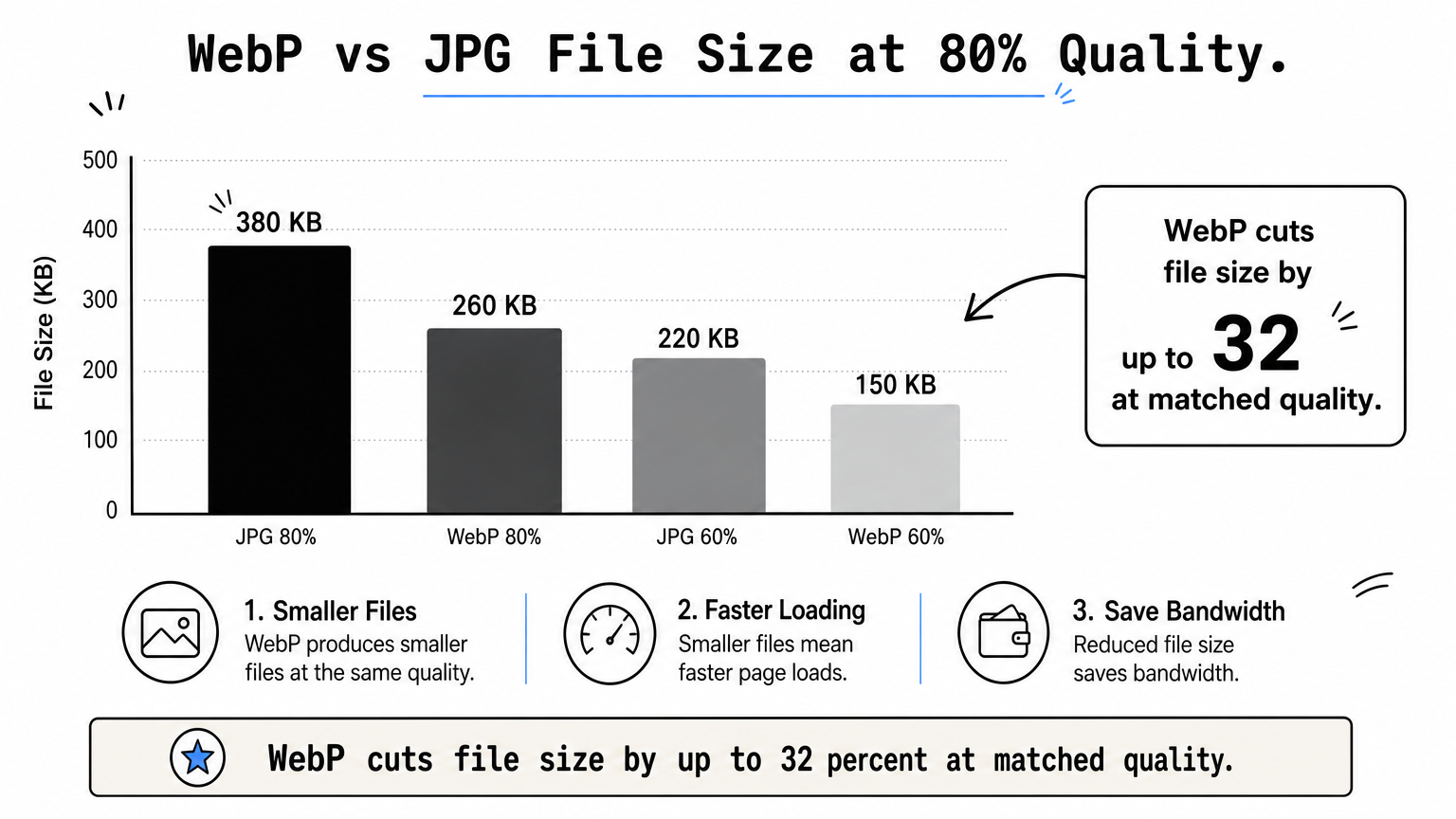
Run the same photo through both formats and the numbers tell a clear story. WebP vs JPG file size tests consistently show WebP producing files 25 to 35 percent smaller than JPG at a visually similar quality level. That gap holds across product photos, screenshots, and full-bleed hero images, which is why so many site owners switch once they see it firsthand.
At matched quality, WebP almost always beats JPG on file size, sometimes by a third or more.
Quality tells a similar story once you look past raw numbers. The WebP format supports both lossy and lossless compression, while JPG only does lossy, so WebP has more flexibility to preserve detail in shadows and fine textures. In practical webp vs jpg quality comparisons, a WebP file at 80 percent quality often looks sharper than a JPG at the same setting, because WebP's compression algorithm handles edges and gradients more efficiently.
Here's a quick side-by-side for a typical 1920x1080 product photo:
| Format | Quality Setting | Approx. File Size | Visible Artifacts |
|---|---|---|---|
| JPG | 80% | 380 KB | Mild blocking in gradients |
| WebP | 80% | 260 KB | Minimal, cleaner edges |
| JPG | 60% | 220 KB | Noticeable blur and banding |
| WebP | 60% | 150 KB | Slight softness, still usable |
The jpg vs webp size difference grows more noticeable as you lower quality settings, since WebP degrades more gracefully. If you're chasing smaller files without sacrificing visible sharpness, WebP gives you more room to work with before compression artifacts become obvious to visitors.
How to decide which format fits your website
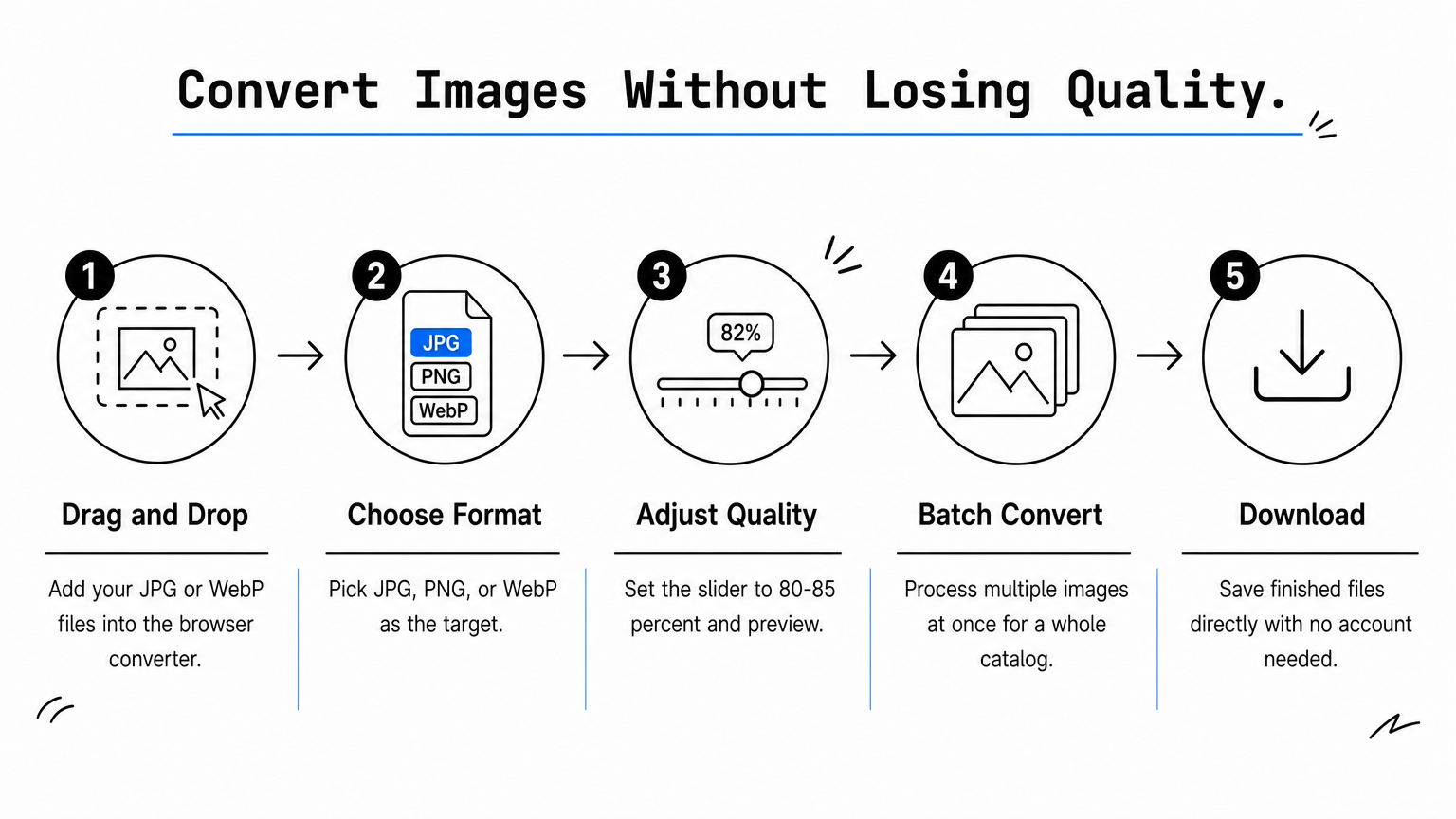
Deciding which image format to use comes down to your audience and your workflow, not just raw numbers. WebP vs JPG for website use cases favor WebP almost every time today, since over 97 percent of browsers in use, including all major desktop and mobile browsers, now support it according to Can I Use tracking. JPG still makes sense for legacy tools, certain email clients, or software that hasn't caught up.
Pick WebP by default and only fall back to JPG when a specific tool or audience demands it.
Match the format to the content
Check your priorities against this quick list before you commit to one format site-wide:
- Product photos and hero images: use WebP for smaller files without visible quality loss.
- Screenshots with sharp text or lines: WebP still compresses cleaner than JPG here.
- Print-ready exports or files headed to older editing software: stick with JPG for compatibility.
- Email newsletters: JPG remains the safer choice since some clients render WebP inconsistently.
- Large batches of e-commerce images: WebP saves storage and bandwidth at scale.
Test before you commit site-wide
Rather than guessing, convert a handful of representative images and compare them side by side on the actual pages where they'll appear. Testing on your own device, at your own quality settings, tells you more than any generic benchmark, and it takes just a few minutes with a browser-based converter.
How to convert between JPG and WebP without losing quality
Converting a batch of images sounds like it should be simple, but most online tools either compress too aggressively or force you to upload personal photos to a stranger's server. ConvertImageNow handles the whole process in your browser, so nothing leaves your device and you keep full control over the output quality.
The safest conversion is one that never leaves your own browser.
Here's the workflow that keeps quality intact while shrinking file size:
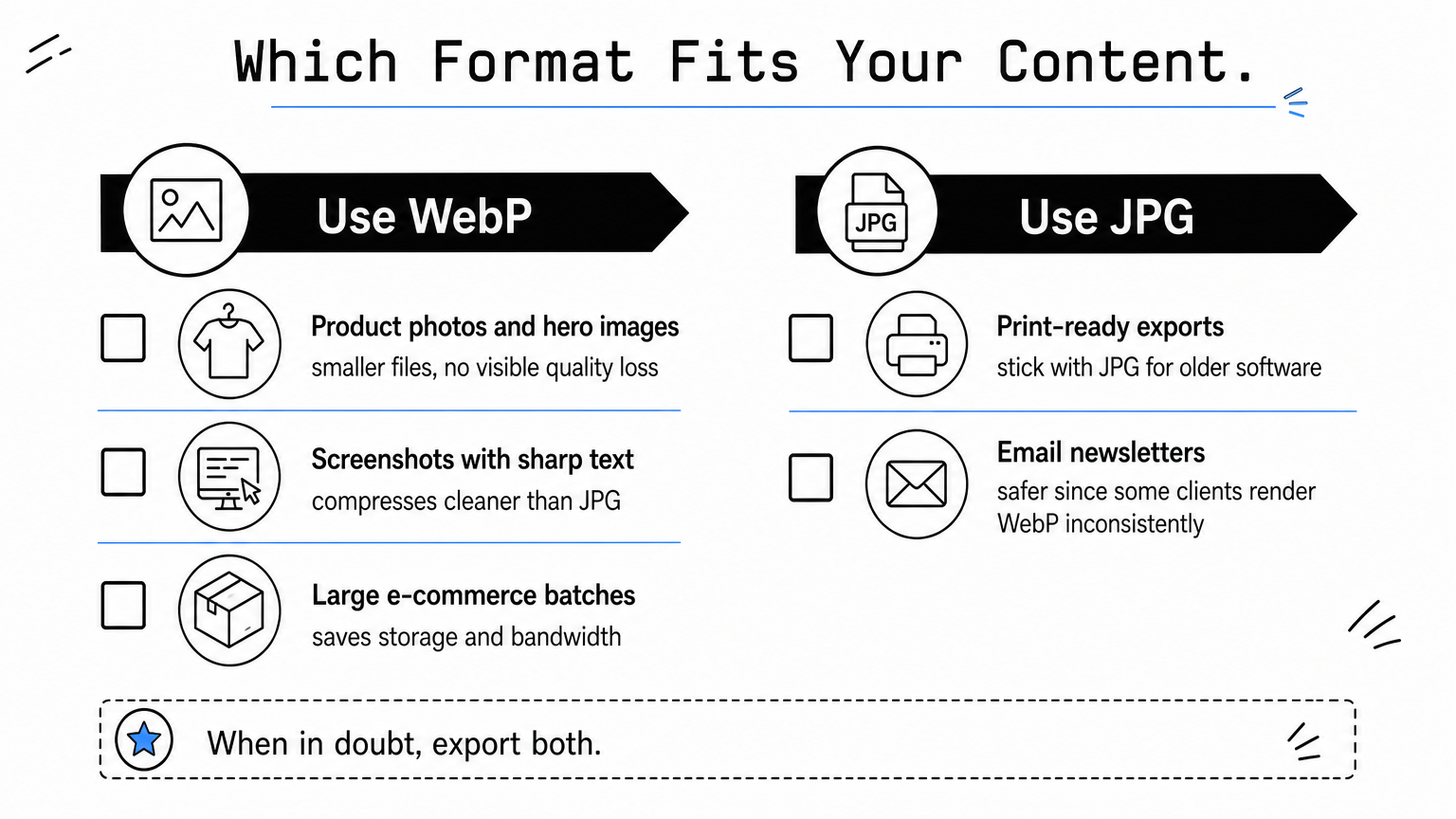
1. Open the ConvertImageNow converter and drag your JPG or WebP files into the browser window.
2. Choose your target format, JPG, PNG, or WebP, depending on where the image is headed.
3. Adjust the quality slider and preview the result before exporting, since 80 to 85 percent usually keeps files small without visible loss.
4. Convert multiple images at once with batch conversion, which saves time when you're prepping a whole product catalog or photo gallery.
5. Download the finished files directly, no account, no waiting on server uploads.
Quality loss during conversion almost always comes from stacking compression on top of compression, so avoid compression artifacts by starting from the highest-quality source file you have rather than from a copy that's already been compressed once. If you're moving from JPG to WebP for a website, run a couple of test images through the converter first and compare them at full size before committing your entire image library to the new format.
Picking the right format for your images
WebP wins the jpg vs webp comparison for most modern websites. It delivers smaller files, holds up better under compression, and works in nearly every browser your visitors use. JPG still earns its place for legacy software, certain email clients, or workflows where compatibility matters more than shaving kilobytes. The right call depends on where the image lives, not on picking a single "best" format for everything you shoot or design.
Rather than guessing which format serves your site best, test both on your own images. Compare file size, sharpness, and load time on the actual pages where visitors will see them. That five-minute test tells you more than any benchmark chart ever will.
When you're ready to convert your library, skip the uploads and the compression guesswork. Convert JPG to WebP online free with ConvertImageNow and keep every file, and every byte of quality, right where it belongs: on your own device.
Related Articles
How to Make an Image File Smaller Without Losing Quality
Learn how to reduce image file size by compressing, resizing, and converting JPG, PNG, WebP, and other image formats.
PNG vs JPG: Which Image Format Should You Use?
PNG and JPG are designed for different jobs. Learn which format is better for photos, logos, screenshots, transparency, and websites.
How to Convert JPG to WebP for Smaller Website Images
Learn how to convert JPG images to WebP, choose quality settings, compare file sizes, and prepare images for faster websites.
Ready to convert your images?
Open the Image Converter