ConvertImageNow
Back to blog

August 11, 2026

How to Make Image File Smaller

How to Make Image File Smaller

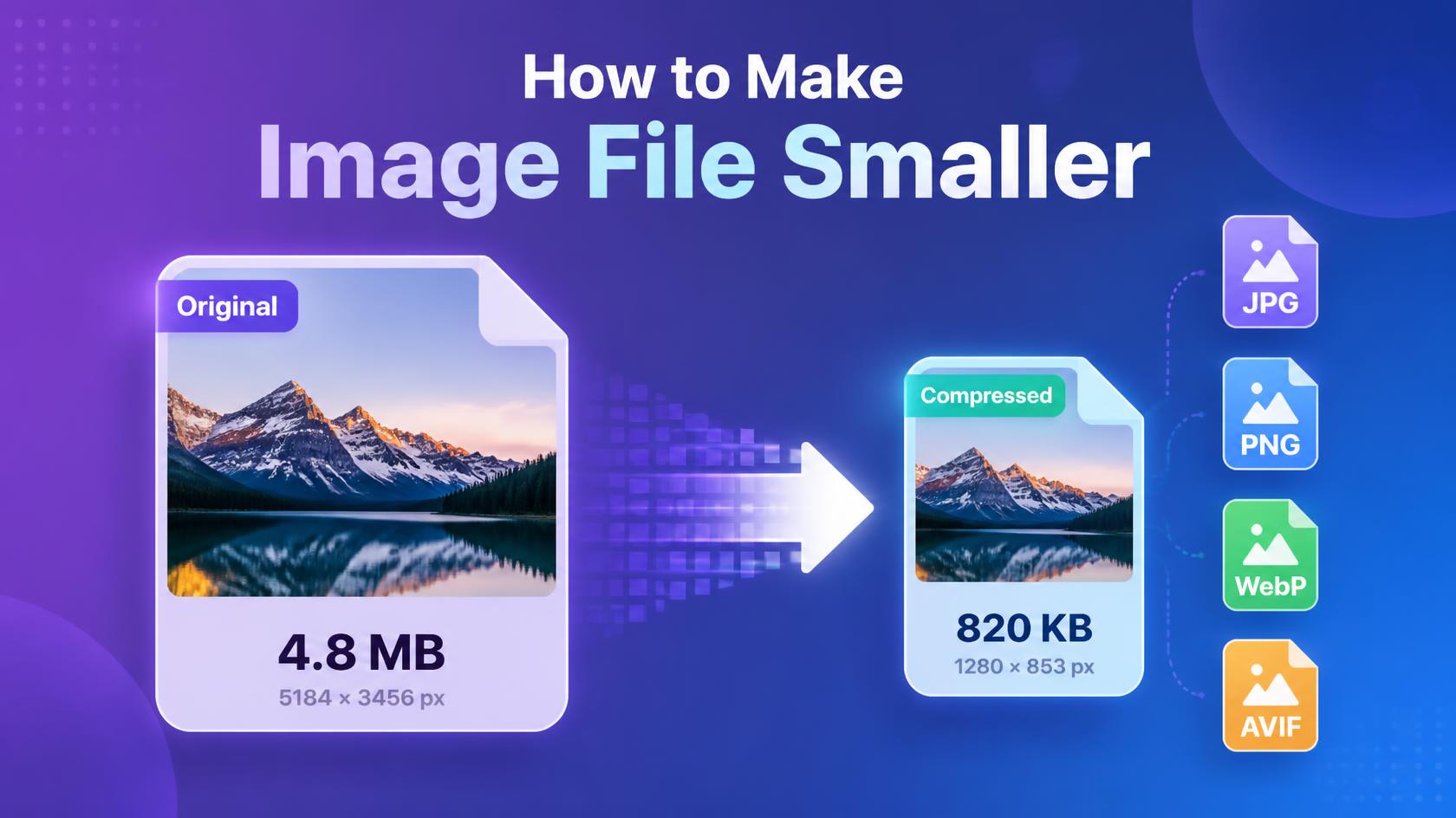
Large image files can be frustrating when you need to upload them to a website, send them by email, share them with someone, or save storage space on your device. A single high-resolution photo can easily be several megabytes, even when you only need a smaller version. Fortunately, there are several simple ways to make an image file smaller without making it look noticeably worse.

The most effective methods are compressing the image, reducing its dimensions, choosing a more efficient image format, and adjusting the quality settings. The right method depends on the type of image and how you plan to use it. In this guide, you'll learn how to reduce image file size while keeping a good balance between file size and image quality.

Why Make an Image File Smaller?

Reducing image file size can be useful for both personal and professional work. Large files take longer to upload and download, use more storage, and can make web pages slower when they are used without optimization.

Smaller images can help you upload files faster, save storage space, share photos more easily, and improve website loading performance. If you manage a blog, online store, or business website, optimizing large images can also help reduce the amount of data that visitors need to download.

For a more detailed explanation of why image size matters for websites and search performance, read our image SEO guide.

1. Compress the Image

Image compression is one of the easiest ways to reduce image file size. Compression reduces the amount of data stored inside an image while attempting to preserve its visual appearance.

For photographs, lossy compression can produce a significant reduction in file size with only a small visible difference when a suitable quality setting is used. If you are working with an important photo, compare the compressed version with the original before replacing the original file.

The best approach is usually to avoid extreme compression. A slightly larger image that still looks clean is often better than a tiny file with obvious compression artifacts.

If you want to learn more about reducing image size while keeping quality high, see our guide on how to reduce image size without losing quality.

2. Reduce Image Dimensions

If an image is much larger than the size at which it will actually be displayed, reducing its dimensions can make the file considerably smaller.

For example, a 4000 by 3000 pixel photograph may be unnecessarily large if it will only appear at 1200 pixels wide on a website. Resizing the image to a more appropriate width and height reduces the amount of image data that needs to be stored and loaded.

This method is particularly useful for blog images, product photos, website banners, profile pictures, and images prepared for email or social media.

Always keep the original image before resizing. That way, you can create another version later if you need a larger size.

3. Choose the Right Image Format

The image format you choose can have a major effect on file size. Different formats are designed for different types of images and use cases.

JPG is widely used for photographs because it can provide good visual quality at relatively small file sizes. PNG is useful when transparency or lossless quality is important, but it can be considerably larger for detailed photographs.

WebP is a modern format designed for efficient image compression and is especially useful for websites. AVIF is another modern format that can provide very efficient compression when supported by your workflow and target platforms.

There is no single best image format for every situation. The best choice depends on the image, the required quality, transparency requirements, compatibility, and where the file will be used.

For a complete comparison of common formats, see our guide to the best image formats explained.

JPG vs PNG for Smaller Image Files

JPG and PNG are designed for different purposes. JPG is usually a better choice for photographs because it can achieve much smaller file sizes. PNG is generally better for logos, screenshots, graphics, and images that require transparency.

If you're deciding between the two formats, our PNG vs JPG guide explains the differences and when each format makes sense.

4. Convert the Image to a Different Format

Changing an image format can sometimes make a large difference in file size. For example, a photograph saved as PNG may be much larger than the same photograph saved as JPG.

Modern formats such as WebP can also be useful when optimizing images for websites. Common conversions include JPG to WebP, WebP to JPG, PNG to JPG, PNG to WebP, and HEIC to JPG.

However, converting an image does not automatically guarantee a smaller file. The final size depends on the original image, dimensions, format, compression method, and quality settings.

5. JPG to WebP for Smaller Web Images

If your goal is to optimize images for a website, JPG to WebP conversion can be worth considering. WebP is designed to provide efficient compression while maintaining good visual quality.

A website owner can convert existing JPG images to WebP, compare the resulting file sizes, and then use the smaller versions where appropriate. This can be especially useful for blogs, online stores, and websites with many photographs.

For a complete step-by-step explanation, read our JPG to WebP conversion guide.

You can also learn more about what WebP is and why it matters.

6. Compress JPG Images

JPG files are already compressed, but their file size can often be reduced further by adjusting the quality level. Saving every photograph at maximum quality may produce files that are larger than necessary for online use.

Try a moderate quality setting and compare the result with the original. For many website images, a carefully compressed JPG can look almost identical while using significantly less storage.

The goal should not be to use the lowest possible quality. Instead, find the lowest setting that still provides the visual quality required for the image's intended purpose.

7. Compress PNG Images

PNG is an excellent format when transparency or lossless image quality is required, but PNG files can become large, especially when they contain detailed graphics or photographs.

If transparency is not required, converting a photographic PNG to JPG may produce a much smaller file. For suitable website images, WebP can also be considered as an alternative.

Before changing a PNG to another format, check whether the image actually needs transparency. If it does, keeping a format that supports transparency may be more important than achieving the smallest possible file size.

How to Make an Image Smaller Without Losing Quality

You cannot always reduce an image file without removing some data, particularly when using lossy compression. However, you can minimize noticeable quality loss by using the right workflow.

Start with the original image, resize it to the dimensions you actually need, choose an appropriate format, and then apply moderate compression. Compare the result with the original before using it.

For important photographs, keep the original file as a backup. This allows you to create another optimized version later without repeatedly compressing the same image.

If you're interested in preserving image quality during conversion, read our guide on how to convert images without losing quality.

How to Make a Photo File Size Smaller on a Phone

Photos taken with modern smartphones can have large dimensions and file sizes. If you only need a smaller version for uploading or sharing, resizing or converting the photo can make it much easier to handle.

You can also use an online image converter from a modern mobile browser. This can be useful when you do not want to install an additional application just to reduce the size of one or several images.

When Should You Use JPG, PNG, WebP, or AVIF?

JPG is usually a practical choice for photographs and general-purpose images. PNG is better when transparency or lossless quality is important. WebP is a strong option for modern websites because it combines good quality with efficient compression.

AVIF can provide highly efficient compression and may be useful for modern web projects, but you should check compatibility with your specific workflow before making it your only image format.

For more information about AVIF, see our guide on what AVIF is and how it works.

Use an Online Image Converter

If you need to quickly reduce an image file size or change its format, an online image converter can save time compared with installing desktop image-editing software.

With ConvertImageNow's image converter, you can convert supported image files directly from your browser. You can choose an output format and adjust quality settings before downloading the result.

For users working with several images, batch conversion can also save considerable time compared with converting each image individually. If you regularly work with multiple files, see our guide on how to batch convert images.

How Small Should an Image File Be?

There is no universal file-size target that works for every image. A suitable size depends on the image dimensions, format, quality requirements, amount of detail, and where the image will be used.

Instead of trying to reach one exact number, aim for the smallest practical file that still provides the quality you need. A properly optimized image can be significantly smaller than the original without looking noticeably different during normal viewing.

Common Mistakes When Reducing Image Size

One common mistake is reducing quality too aggressively. This can make photographs look blurry or create visible compression artifacts.

Another mistake is resizing an image repeatedly. Whenever possible, start from the original image and create the final optimized version from that source.

It is also a mistake to choose an image format based only on file size. Transparency, compatibility, image type, and intended use should also be considered.

Frequently Asked Questions

How can I make an image file smaller?

You can make an image file smaller by compressing it, reducing its dimensions, changing its format, or adjusting its quality settings.

How do I reduce image file size without losing quality?

Resize the image to the dimensions you actually need, choose an appropriate format, and use moderate compression. This can significantly reduce file size while keeping the image looking good.

Does JPG to WebP reduce image file size?

It can. WebP is designed for efficient compression, so converting a JPG to WebP may produce a smaller file depending on the image and quality settings.

Is PNG or JPG smaller?

For most photographs, JPG is usually smaller than PNG. PNG is more useful when transparency or lossless image quality is required.

Does resizing an image reduce its file size?

Yes. Reducing the width and height generally reduces the amount of image data and can significantly reduce the file size.

Can I reduce image size online?

Yes. Online image converters and compression tools can reduce image file size without requiring desktop image-editing software.

Final Thoughts

Making an image file smaller does not necessarily mean making it look worse. The best results usually come from combining the right dimensions, compression level, quality settings, and image format.

For photographs, JPG and WebP are often practical choices. PNG remains useful when transparency or lossless quality is required, while AVIF can be considered for efficient modern web images.

If you need a quick way to convert and optimize an image, try ConvertImageNow. Choose the format you need, adjust the quality, and download your optimized image directly from your browser.

Ready to convert your images?

Open the Image Converter