Updated September 13, 2026
How to Convert PNG into JPG Online for Free
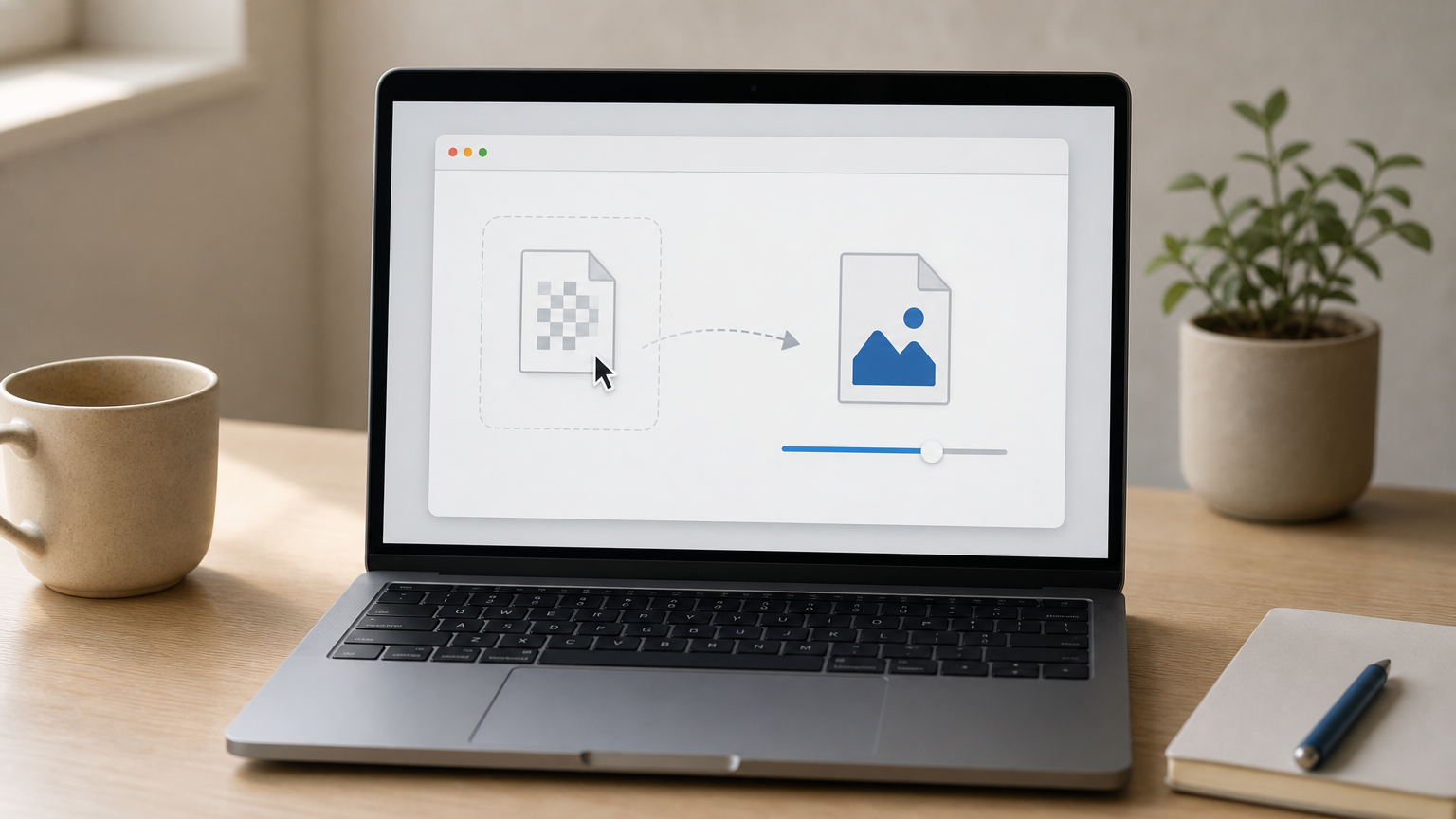
You've got a PNG file that's too big for your website, too heavy for an email attachment, or just not accepted by a form that wants a JPG. Whatever the reason, you need to convert png into jpg online without downloading yet another program to your laptop. That's a completely normal ask, and it's faster to solve than most people expect.
You can do this in your browser, right now, for free. ConvertImageNow lets you convert png to jpeg by dropping your file into the page, adjusting the quality if you want smaller output, and downloading the result in seconds. Nothing gets uploaded to a server, since the conversion runs locally using your device's own processing power, so your images stay private the whole time.
Below, you'll find a step by step walkthrough for converting a single PNG or a whole batch of them, notes on when JPG actually makes sense over PNG, and tips for keeping quality high while file size stays low. No sign-up, no watermark, no catch, just a quick conversion so you can get back to your actual work.
PNG vs JPG: why convert your images
PNG and JPG solve different problems, and mixing them up costs you either quality or file size. PNG files use lossless compression, which keeps every pixel exactly as it was, plus they support transparency. That's why logos, icons, and screenshots with sharp edges look best in PNG. JPG, on the other hand, uses lossy compression that shrinks file size dramatically by discarding data the human eye barely notices, especially in photos with lots of color gradients.
Question is when that trade-off actually helps you. If you're uploading product photos to an online store, attaching a picture to an email, or trying to speed up a slow-loading web page, JPG almost always wins. A PNG photo can run 3 to 5 times larger than the same image saved as JPG, with no visible difference to most viewers.
| Feature | PNG | JPG |
|---|---|---|
| Compression | Lossless | Lossy |
| Transparency | Yes | No |
| Typical file size | Larger | Smaller |
| Best for | Logos, screenshots, graphics | Photos, web images, email attachments |
Running the numbers this way makes the choice obvious for most everyday tasks.
If your image is a photo and file size matters, JPG is almost always the right call.
Sites that let you png convert jpg in bulk save you from doing this math one file at a time. Once you understand which format actually serves your goal, converting becomes a simple mechanical step rather than a guessing game, and that's exactly what the next few steps walk you through.
Step 1. Upload your PNG images
Open the free online image converter in any modern browser on your desktop or phone, no download or install required. You'll see a drag-and-drop zone right on the homepage, and that's where the actual convert png into jpg online process starts. Drop a single PNG onto that zone, or select multiple files at once if you're batch converting a whole folder of product photos or screenshots.
Getting your files into the tool takes just a few clicks:
1. Go to the ConvertImageNow PNG to JPG converter page.
2. Drag your PNG file (or files) into the upload box, or click it to browse your device.
3. Watch the thumbnails load instantly, confirming each image is ready.
Nothing leaves your device during this step. The tool reads your files locally using your browser's own processing power, so there's no upload progress bar and no wait for a server somewhere to receive your images.
Your PNGs never touch a server, the whole conversion happens right in your browser tab.
Unlike a png to jpg converter app you'd install, there's nothing to configure before you start. Once your thumbnails appear, you're ready to move on to quality settings.
Step 2. Choose your JPG quality settings
After your thumbnails load, look for the quality slider next to your images. This single control decides how much your JPG quality settings trade file size for visual detail, and getting it right matters more than most people assume. Higher settings keep more detail but produce bigger files, while lower settings shrink the file fast at the cost of some sharpness, especially around text or hard edges.
For most everyday photos, a setting between 75 and 85 percent makes the image file smaller than the original PNG with no visible quality loss. Product photos headed to a marketplace or web images that need to load fast can often go lower, down to 60 or 65 percent, without anyone noticing.
Ninety percent quality is invisible to the eye, but it can be half the file size of the original PNG.
Here's a quick reference for picking a starting point:
| Use case | Suggested quality |
|---|---|
| Print or archival copies | 90-100% |
| Website images, blog photos | 75-85% |
| Product thumbnails, email attachments | 60-70% |
Drag the slider, and the tool recalculates the estimated file size instantly, so you can compare before committing to a download.
Step 3. Convert and download your JPG files
Once your quality slider looks right, hit the convert button and watch the magic happen almost instantly. Because everything runs locally, there's no queue and no waiting on a distant server to process your batch. Even a folder of 30 or 40 images finishes in a few seconds on a typical laptop or phone.
Downloading is just as simple:
1. Click Convert once you're happy with the quality setting.
2. Preview each JPG thumbnail to confirm it looks right.
3. Click Download for a single file, or Download All to grab a zip of the whole batch.
A batch of PNGs becomes ready-to-use JPGs in seconds, with no upload wait and no server queue.
Every file keeps its original name, just with a new .jpg extension, so you won't lose track of what's what. If you're not happy with the result, nothing stops you from sliding the quality back up and running the png to jpg converter again. Since your originals never leave your device, you can experiment freely without any risk of overwriting or losing the source PNGs.
Other ways to convert PNG to JPG on Windows and Mac
Sometimes you'd rather skip the browser entirely, and both major operating systems already include basic tools for this. On Windows, the built-in Photos app or Paint lets you open a PNG and use "Save As" to pick JPG, though you won't get a quality slider or batch support without digging into settings most people never touch.
Apple users have a similar option through Preview, where File > Export lets you choose JPEG and adjust a basic quality slider one image at a time.
Built-in tools work fine for one photo, but they turn tedious fast once you've got a folder full of PNGs.
The catch with both native apps is speed at scale. Converting 50 images one at a time in Preview or Paint eats your afternoon, and neither app was built for batch work. That's the gap a browser-based PNG to JPG converter fills, especially when you're also trying to avoid installing extra software just for one task.
Your images, ready to use
You now have everything you need to convert png into jpg online without touching a single piece of software. Upload your files, pick a quality setting that matches what the image is actually for, and download JPGs that are ready for your website, your online store, or your next email attachment. The whole process takes less time than it took to read this guide.
Zero cost, zero sign-up, and zero risk to your original files means there's no reason to keep a PNG around just because converting it felt like a chore before. Batch conversion handles the tedious cases, and the quality slider gives you control that built-in apps rarely offer without extra clicks.
Grab your files, drop them into the converter, and see the size difference for yourself. Head over to the free PNG to JPG converter and turn your next batch of PNGs into web-ready JPGs in seconds, right from your browser.
Related Articles
How to Make an Image File Smaller Without Losing Quality
Learn how to reduce image file size by compressing, resizing, and converting JPG, PNG, WebP, and other image formats.
PNG vs JPG: Which Image Format Should You Use?
PNG and JPG are designed for different jobs. Learn which format is better for photos, logos, screenshots, transparency, and websites.
How to Convert JPG to WebP for Smaller Website Images
Learn how to convert JPG images to WebP, choose quality settings, compare file sizes, and prepare images for faster websites.
Ready to convert your images?
Open the Image Converter